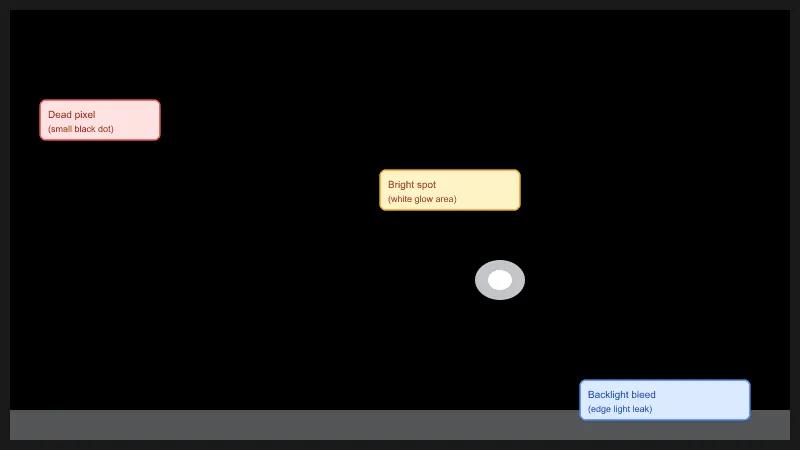
The Screen Test Tool is a comprehensive, free online utility designed to help users identify various display defects on laptops, monitors, tablets, and smartphones. It offers a suite of diagnostic tests to detect common screen issues such as dead pixels, bright spots, backlight bleed, screen burn-in, color uniformity problems, and motion blur.
Key Features:
-
Multiple Test Modes: The tool provides four distinct test modes to thoroughly evaluate screen health:
- Pure Solid Colors: Cycles through white, black, red, green, blue, and gray to expose dead pixels, bright spots, and stuck pixels. Each color serves a specific diagnostic purpose; for instance, white reveals dark spots, black highlights bright spots and backlight bleed, and red/green/blue help identify subpixel failures. Gray screens are crucial for detecting subtle banding and uniformity issues.
- Color Gradients: Features red, green, and blue gradients to reveal banding, color tinting, and overall color uniformity problems across the display.
- Test Patterns: Includes horizontal lines, vertical lines, grid, checkerboard, and RGB stripes to pinpoint pixel rows, columns, or subpixel failures that might not be obvious with solid colors.
- Motion Blur Test: Evaluates the display's response time, helping users identify ghosting or blur artifacts during fast-moving content.
-
Auto-Cycle Feature: For hands-free inspection, the tool includes an auto-cycle option that automatically progresses through all solid color tests. This allows users to step back and examine their screen from various distances and angles without manual intervention.
-
Fullscreen Mode: Users can activate a fullscreen mode to ensure the entire display area is covered, eliminating distractions from the operating system interface and allowing for a focused inspection.
-
Brightness Adjustment: Within the fullscreen view, a brightness slider is available. Reducing the brightness (e.g., to 30–50%) can make backlight bleed and subtle uniformity issues significantly more visible, aiding in more accurate detection.
How to Use:
- Enter Fullscreen: Click the "Fullscreen" button to dedicate the entire screen to the test. Close any unwanted applications or windows beforehand.
- Navigate Tests: Use the "Next" and "Previous" buttons, or the left/right arrow keys, to cycle through the different test colors and patterns. The Space bar can also advance one step.
- Inspect Carefully: Spend several seconds on each screen, meticulously looking for any anomalies such as dark dots (dead pixels), glowing areas (bright spots), light leakage (backlight bleed), lines, color tints, or uneven brightness.
- Adjust Brightness: Utilize the brightness slider in fullscreen mode, especially during black screen tests, to enhance the visibility of backlight bleed and uniformity problems.
Use Cases:
- New Device Inspection: Ideal for checking new laptops, monitors, tablets, or smartphones immediately after purchase to ensure they are free from manufacturing defects before the return window expires.
- Existing Device Diagnosis: Useful for diagnosing display issues on older devices, helping users understand the nature of the problem (e.g., dead pixel vs. stuck pixel, backlight bleed vs. bright spot) before seeking repairs or replacements.
- Warranty Claims: Provides a systematic way to document screen defects, which can be valuable when making warranty claims with manufacturers.
The tool simplifies the process of identifying complex display problems, offering a reliable and immediate diagnosis for anyone concerned about their screen's health. It's an essential utility for both casual users and professionals who demand perfect display quality.