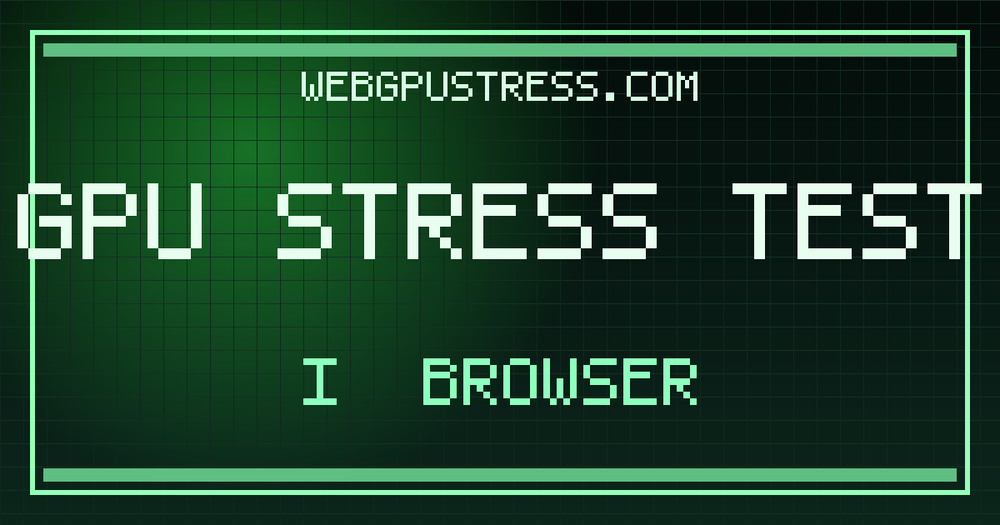
WebGPUStress offers a free, online GPU stress test that runs directly in your browser, eliminating the need for large downloads or installations. This tool leverages WebGL (and WebGPU) technology to push your Graphics Processing Unit (GPU) to its limits by rendering complex shader calculations in real-time. This process generates a massive parallel workload, effectively saturating your GPU's shading units and VRAM, making it an ideal solution for testing stability after overclocking or verifying the efficiency of your cooling system under sustained 100% loads.
Key Features:
- No Installation Required: Runs instantly in any modern browser using standard web APIs (WebGL/WebGPU), bypassing the need for multi-gigabyte testing suites.
- Privacy-First & Safe: Operates within the browser's secure WebGL sandbox, offering a safer alternative to downloadable executables that might trigger antivirus warnings.
- Real-Time Performance Monitoring: Provides live metrics including Average FPS, 1% Low FPS, Frame Time Stability, and Drop Frame Ratio, allowing users to observe performance consistency and detect issues like thermal throttling or VRAM instability in real-time.
- Comprehensive Analysis: Summarizes data points to visualize stability and highlight potential cooling issues.
- Compatibility: Supports major browsers including Chrome, Edge, Firefox, and Safari, and is compatible with both desktop and mobile devices (iOS and Android).
- Technical Specifications: Utilizes WebGL 1/2 (and WebGPU) as the rendering API, GLSL ES 1.0 / 3.0 as the shader language, and employs highp float (32-bit) precision for fragment shader saturation workloads.
How It Works:
- Shader Workload: Executes a heavy fragment shader loop designed to saturate the GPU's parallel cores and VRAM bandwidth.
- FPS Measurement: Continuously samples frame rate and frame time to accurately detect stability drops or thermal throttling.
- Analysis: Processes collected data to provide a clear summary of stability and identify potential cooling system deficiencies.
Common Use Cases:
- Post-Overclock Stability Check: Verify the stability of your GPU after applying overclocking settings.
- Laptop Thermal Assessment: Determine if your laptop's cooling system can handle sustained high loads without throttling.
- Gaming Stutter Diagnosis: Identify if GPU instability or thermal issues are contributing to in-game stuttering.
- Virtual Machine Sanity Check: Test GPU performance within virtualized environments.
- New PC Build Validation: Ensure your new graphics card and cooling setup perform as expected.
- Cooling Upgrade Evaluation: Assess the effectiveness of recent cooling system modifications.
Interpreting Results:
- Stable Performance: Consistent score/load indicates effective cooling.
- Possible Throttling: A significant performance drop over time suggests thermal throttling, prompting checks on fan curves or thermal paste.
- Browser Limits: For accurate results, keep the test tab focused and the window unminimized as browsers prioritize active tabs.
Troubleshooting Tips:
- Screen Flickering/Artifacts: Often indicates VRAM overheating or an unstable GPU core overclock. Lower GPU frequency or check for hardware issues.
- Low FPS/Score Drop: A classic sign of thermal throttling. Improve airflow, check fan curves, or ensure laptops are in 'Performance Mode' and plugged in.
- Driver Crash/Black Screen: Suggests a graphics driver issue or an undersized Power Supply Unit (PSU). Update drivers or consider PSU capacity.
This tool provides a safe, accessible, and efficient way to benchmark and stability test your graphics card, offering valuable insights into its performance and thermal behavior.